

Highlights
- Updated User Portal Login
- Improved Filter Menus
- Improved Desktop Authenticator SSO Error Handling
Enhancements
Updated User Portal Login
- With this release, we are improving the login experience and controllability of the User Portal as follows:
- First, we are changing the User Portal login so that the primary login flow is SSO (no longer mixing the workflow login and the SSO login on the login page).
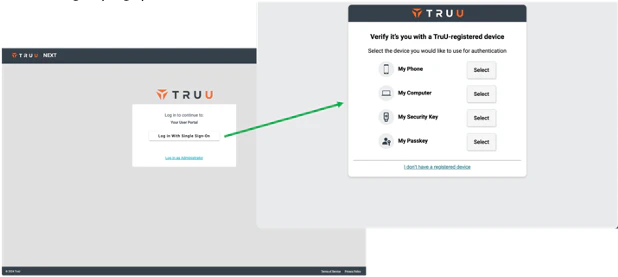
- Second, the User Portal now operates like any other app where the login flow is based on the application policy applied to the adapter governing access to the User Portal (along with any other applications). This includes having control over whether you allow login with workflow and, if you do, you can now specify which workflow is used for login to the User Portal (in the past this was governed by the registration policy for mobile).
- NOTE: new tenants created after this release will include the auto-created SAML adapters for the User Portal and the Admin Console as well as auto-created policies for the Admin Console (with no worklow allowed) and the User Portal (with the default workflow allowed for login).
Improved Filter Menus
-
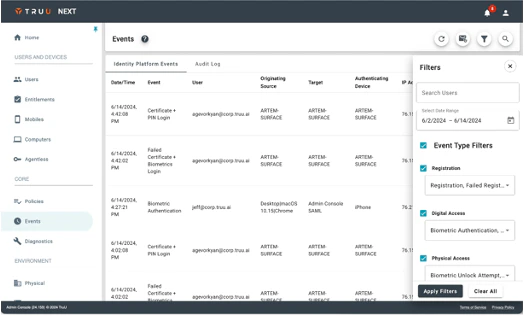
We’ve improved the filter menus used throughout the product. The new filter component has changed as follows:
- The filter component now opens from the right and appears over the table.
- The title and the close button (“X”) are fixed to the top of the menu, and the “Apply Filters” and “Clear All” buttons are fixed at the bottom, so you never have to scroll for these options.
- The filter menu can be closed by clicking the “X” or by clicking outside of the filter component.
- Most importantly, when you set a filter the settings will persist throughout the session (the filters will be removed when you logout).
Improved Desktop Authenticator SSO Error Handling
-
Finally, we’ve made improvements to better communicate to an end user specific SSO failure events with the desktop authenticator (and do not revert to using the phone to login).
- If a user tries to login to an app while their account is not active in the directory, they will be informed of the issue and instructed to contact the support organization.
- If a user tries to login to an app that requires identity verification before their identity has been verified they will be informed that they must have their identity verified to access the resource from that computer.

Bug Fixes
- We have fixed an issue to include custom branding on the agentless enrollment screen.
- We have fixed an issue where events were not generated in the Events table if a user starts Passkey authentication on mobile and then cancels the authentication attempt.
Known Issues
PLAT 24.160 Release Notes PLAT 24.158 Release Notes