

Highlights
- Improved UI / UX for SSO and Workflow
- Improved and Consolidated Customization
Enhancements
Improved UI / UX for SSO and Workflow
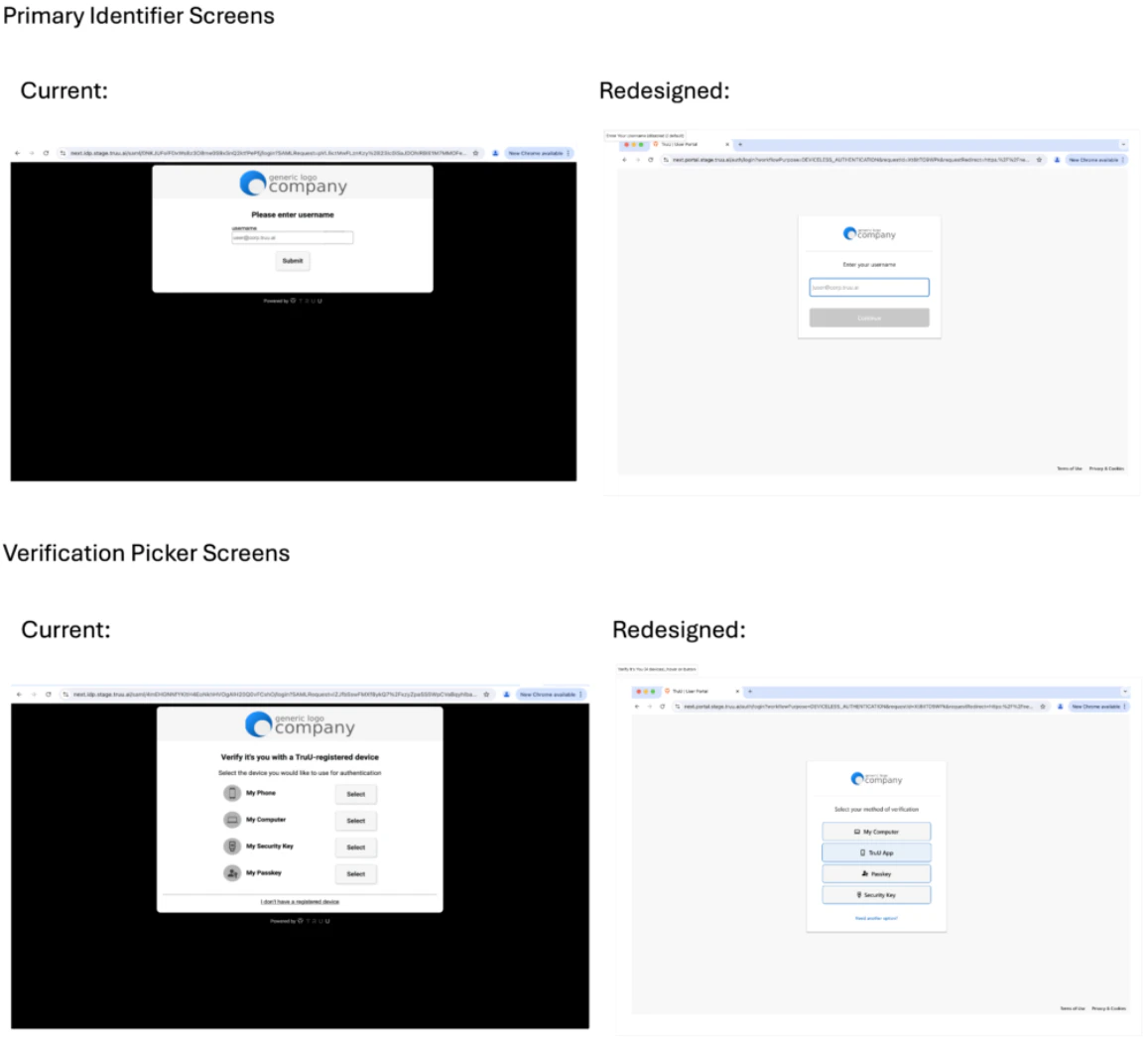
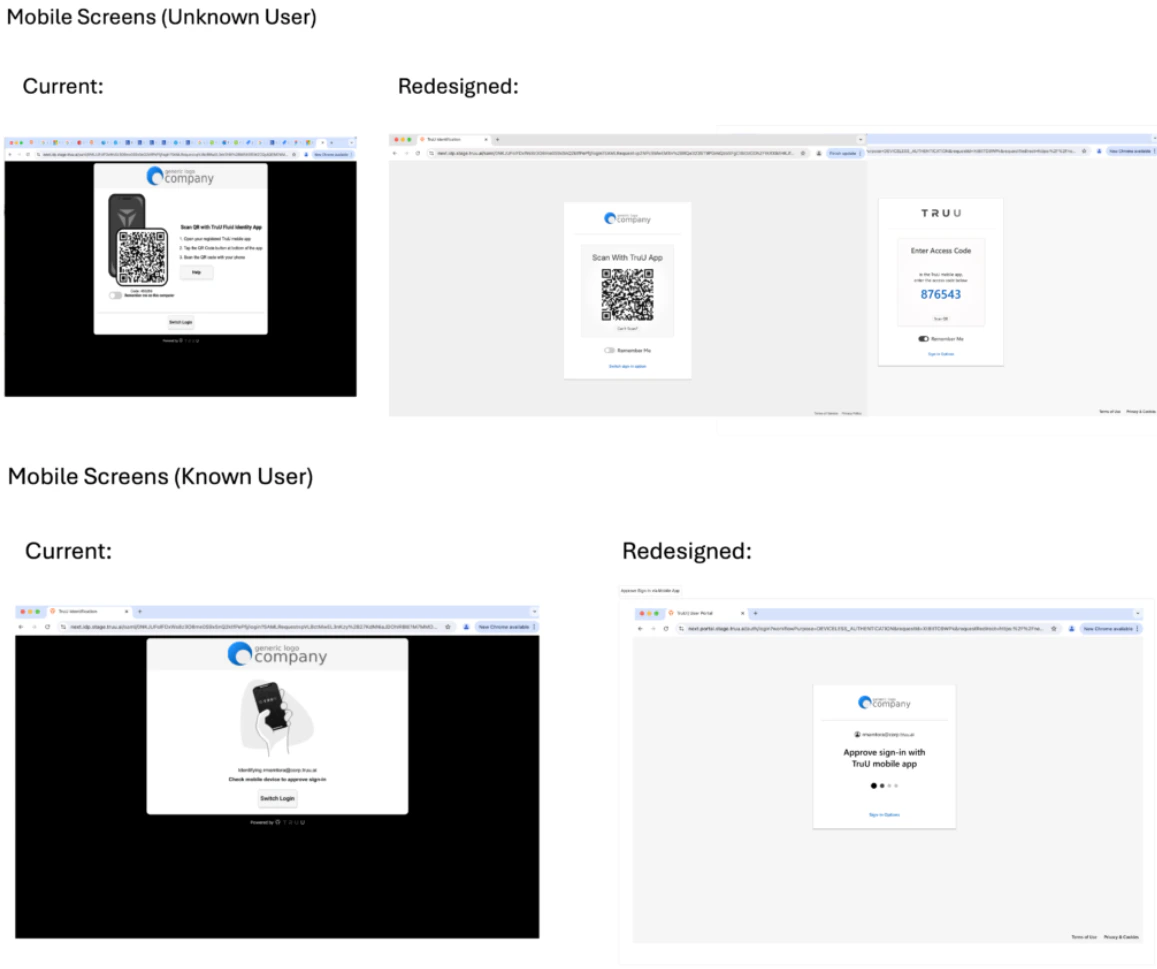
- We have completely redesigned the screens we show for SSO to be much more streamlined and consistent across pages / interfaces. The new UI ensures that the main part of the UI (the white box with all the user instructions and interactions) appears in the same position on the screen. While those boxes may have different heights based on the real estate needed for the screen, the width does not change. In addition, we have removed the excessive TruU branding from those screens. In fact, if you have customized the SSO pages to include your logo, we no longer show the ”Powered by TruU” below the white box. In addition, we have added links to the Terms of Service and Privacy Policy to the SSO pages as well.
Improved and Consolidated Customization
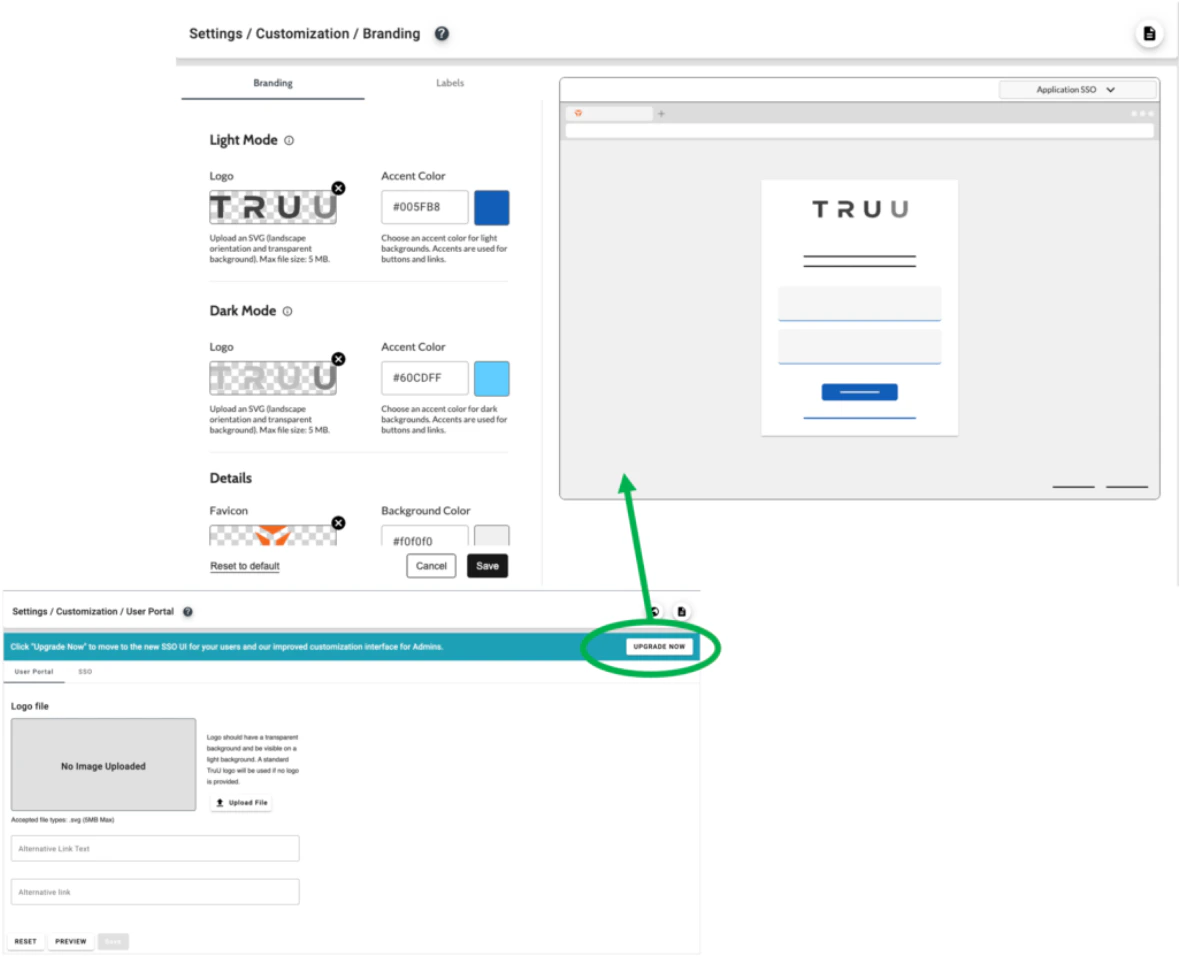
- While we are very excited about the new designs for the SSO screens and the improved user experience, we understand that customers want to control when changes are experienced by their end users. For that reason, we have gated these changes behind our improved and more streamlined Customization pages in the Admin Console. In the Admin Console you will see an “Upgrade Now” banner in the Settings > Customization menu. (Note: this banner / button will appear after Identity Servers are upgraded to 24.170.) When you click this button the following things will happen:
- The new SSO and Workflow UI described above will be live for end users.
- The ‘User Portal’ and ‘SSO’ sub-menus will be replaced with sub-menus for ‘Branding’ and ‘Labels’.
- On this page you can add logos, and favicons, and set background colors and accent colors. You will note that you can add logos and accent colors for both light and dark modes. The reason we have this broken out into light and dark modes is because in the coming months we will be releasing a version of the Windows Authenticator that will support branding (getting the logo and the accent colors from here). The light mode logo and accent colors are used for the SSO pages and the workflows today. We’ve also improved the preview so you can see how your changes affect the UI without having to leave the page.
- On this page you can:
-
Enable / Disable showing the Terms of Service link on the SSO screens.
- You can also modify the text label, and/or
- Change the URL.
-
Enable / Disable showing the Privacy Policy link on the SSO screens.
- You can also modify the text label, and/or
- Change the URL.
-
Enable / Disable showing the alternate link on the User Portal sign-in screen (the one that by default points to the Admin Console).
- You can also modify the text label, and/or
- Change the URL.
-
Enable / Disable showing the ‘User Identification’ header that appears on the screens supporting knowledge factors in the user self-service portion of a workflow used for authentication.
- You can also modify the text for that header.
Bug Fixes
- We have fixed some performance issues to improve slow page loading in the Admin Console.
- We have fixed an issue where sorting the device list (based on last check-in) did not sort correctly.
Known Issues
PLAT 24.171 Release Notes PLAT 24.169 Release Notes