

Highlights
- Entra ID FIDO2 Enrollment Adapter
- MFA Claim for OpenID Connect Adapter
Enhancements
Entra ID FIDO2 Enrollment Adapter
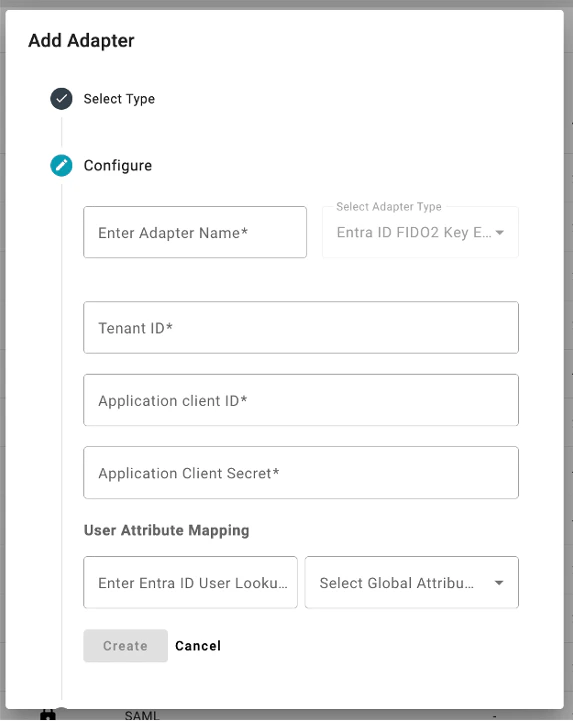
- We’ve added a new adapter for customers who are using a directory other than Entra ID to enable them to enroll the 24.2 Windows Authenticator, when configured, to require FIDO2. This adapter enables the Admin to provide TruU with an OAuth client and secret and the appropriate mapping attribute in order to confirm that TruU has been registered as a FIDO2 security key with Entra ID for the user. This adapter is required for customers who are using the 24.2 (or higher) Windows Authenticator in FIDO2 mode when the directory is anything other than Entra ID. If you are using Entra ID as your directory, this adapter is not required.
MFA Claim for OpenID Connect Adapter
- To better support Entra ID deployments federated through Okta, we can now pass an MFA claim to Okta Identity Engine. In the past, we were unable to do this, resulting in desktop enrollments through Autopilot requiring the user to authenticate with a mobile device. With this change, and proper configuration of Okta to support Authentication Method Reference (AMR) claims, users can now enroll Windows Authenticators directly through TruU without the need of another device.
Bug Fixes
- We have fixed an issue when a user’s passkey is deleted from Admin Console or User Portal; furthermore, when that user mistakenly tries to use that passkey for authentication, failure event would appear for the wrong device (e.g. another security key and/or passkey) registered to that user.
- We have fixed an issue where the filters applied for viewing a table (e.g. Users, Mobiles, etc.) would not be passed automatically when choosing to send a report for that page.
- We have improved error message when trying to use a passkey or a security key to authenticate to an Office 365 thick app on macOS (which is not supported).
- We have locked down communication channel used for Single Sign-On to ensure that agents only communicate with their own tenant.
- We have fixed a confusing UI issue when running diagnostics for a user. We removed the device picker as the results when using the picker could be confusing (as it only evaluated the assurance level of the device and not the policy). We now assume the assurance level is Certified (the highest level available) and run the policy evaluation independent of the device.
Known Issues
PLAT 24.162 Release Notes PLAT 24.159 Release Notes