

Highlights
- Option to Require Identity Verification for Authentication
- Identity Verification Workflows for Agentless
- Improved Management of “FIDO Keys” in Entra ID
- Computer Policy Cleanup
- Improved Agent Log Notification Options
- Bug Fixes
Enhancements
Option to Require Identity Verification for Authentication
-
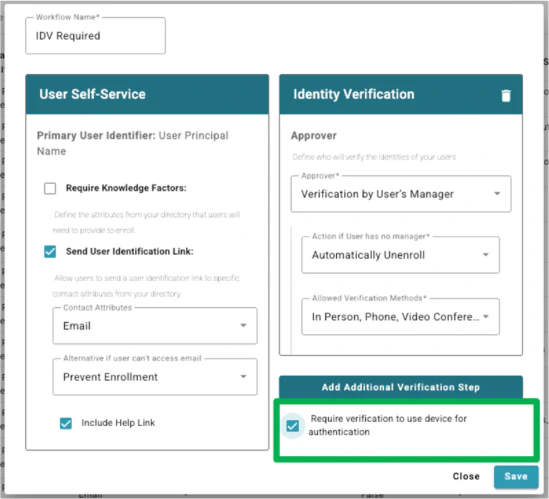
We have updated our Identity Verification Workflows and Device Assurance Levels to support requiring some users to have their identity verified without requiring all users to do so. Specifically, we now have an option when configuring a Workflow with an Identity Verification step to “Require verification to use device for authentication”.
-
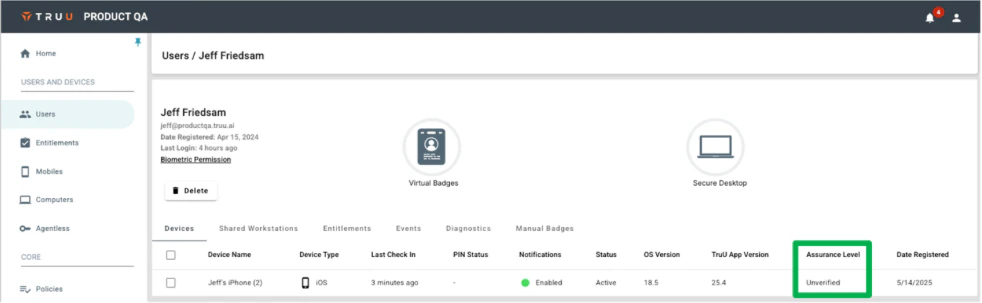
When workflows are setup with this option enabled, devices will be enrolled after completing the self-service portion of enrollment with a state of “Unverified” (which is below “Basic”). If a user tries to use this device for authentication, they will be prevented from using it as it does not meet the minimum assurance level.
Identity Verification Workflows for Agentless
-
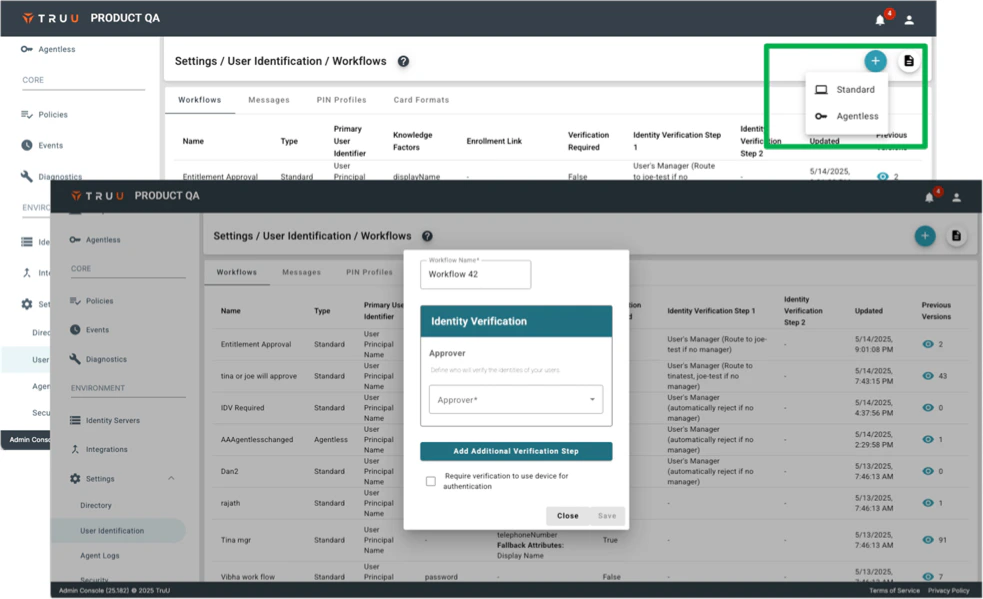
We have also updated our workflow support to include workflows for agentless (Security Keys / Passkeys) enrollments. When creating a workflow, you can now choose between:.
- Standard: with options to define self-service (knowledge factors and/or possession factors) and identity verification steps.
-
Agentless: to create a workflow with only an identity verification step (as users don’t perform self-service steps with agentless, they simply enroll though the User Portal).
Improved Management of “FIDO Keys” in Entra ID
-
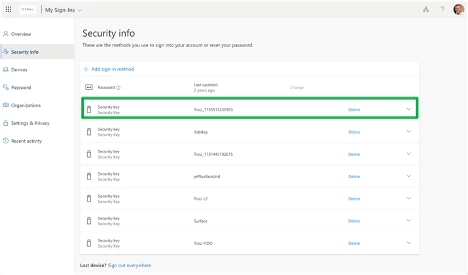
When using the Windows Authenticator for Entra-joined Windows machines, TruU enrolls the device as a FIDO Security Key in Entra ID on behalf of the user in order to use TruU to authenticate to Windows. We have improved our management of the registered device such that when a user re-enrolls the same device, we will delete the old key in Entra ID.
Computer Policy Cleanup
-
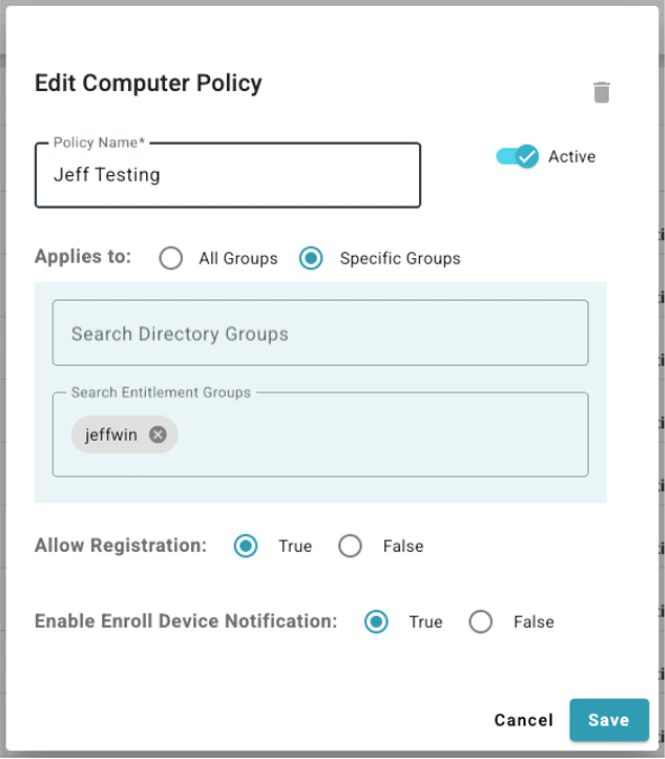
We have removed obsolete policies from the Computer policy section in the Admin Console. Our original desktop authenticators relied on interactions with a mobile device enrolled in TruU using Bluetooth and/or network communications. The policy settings for those obsolete features have remained in the UI as we had customers still using the older agents. Our customer base is now using the modern authenticators that don’t rely on mobile and so we have cleaned up the Admin Console to reflect the computer policies that apply for the modern authenticators.
Improved Agent Log Notification Options
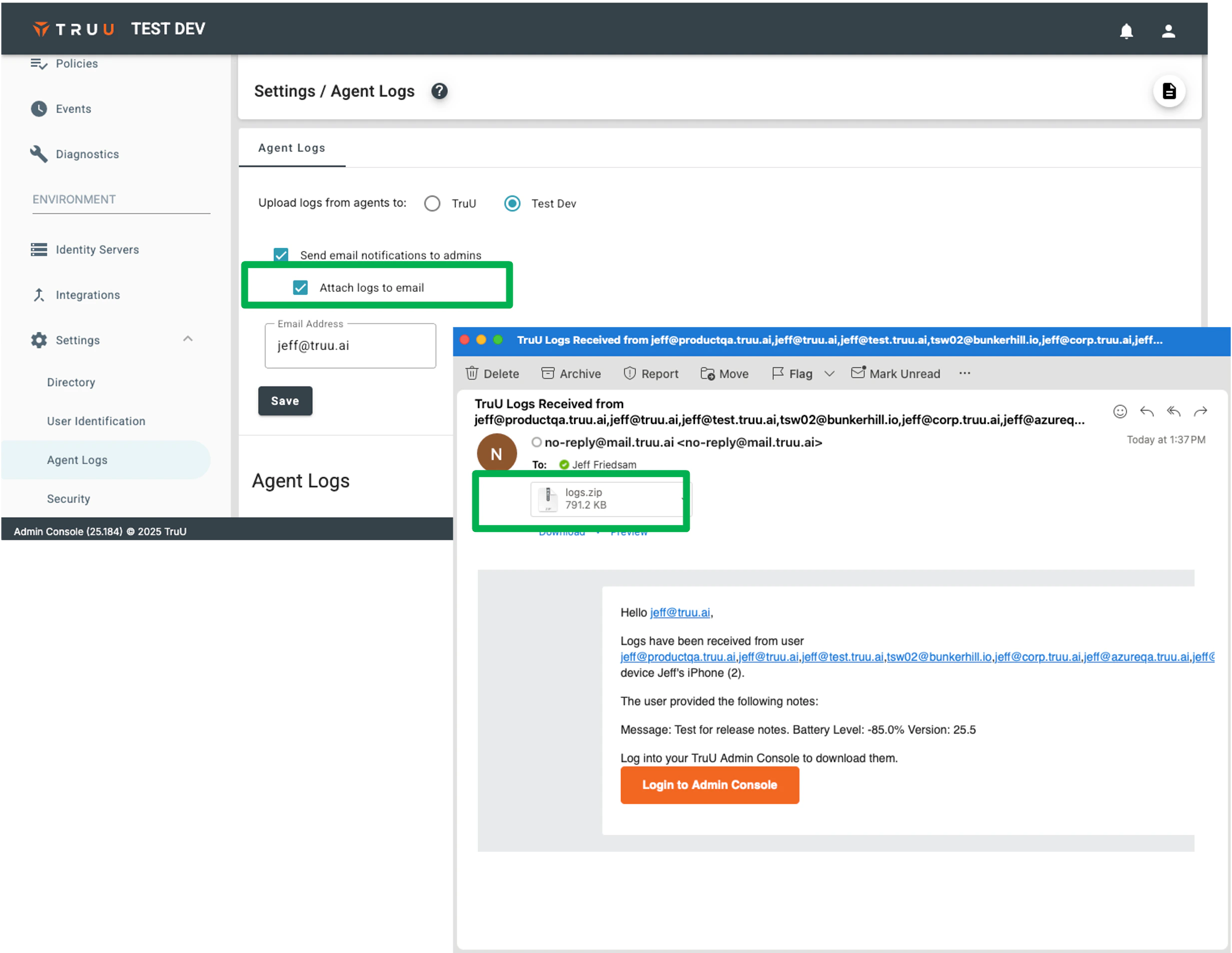
- To better support delivery of logs from desktop agents and mobile clients to support teams (and to automate ticket creation in ITSM tools), we have added new options to the notification emails that are sent when logs are received. Specifically, we now provide options to include the log files as attachments in the emails that we send. (NOTE: we will only send the logs as an attachment if the files are less than 10 MB).
Bug Fixes
- We have fixed an issue where recent activity would not appear when viewing events for a user’s device (e.g. clicking on a user, then selecting a device from their device list).
- We have fixed an issue where customization (background colors or images) would get lost upon clicking the “Back” button after an SSO failure.
- We have fixed an issue where workflow used for enrollment or authentication would fail if user included leading or trailing spaces when entering an email address.
- We have updated auditing to include audit events for uploading logos, images and favicons for Branding (Customization).
- We have fixed an issue where users would get sent multiple emails with enrollment codes when multi-clicking the “Send Code” button during enrollment.
- We have fixed an issue where the alternate URL (displayed on the User Portal sign-in page) would still point to the Admin Console even if it had been customized to navigate to a different location.
- We have fixed an issue where the first-time user flow in the User Portal did not work properly when an image is being used for the SSO background.
- We have improved performance of the User Portal login page loading.
- We have fixed an issue where SSO from some applications using an embedded browser would fail.
Known Issues
PLAT 25.186 Release Notes PLAT 25.180 Release Notes