

Highlights
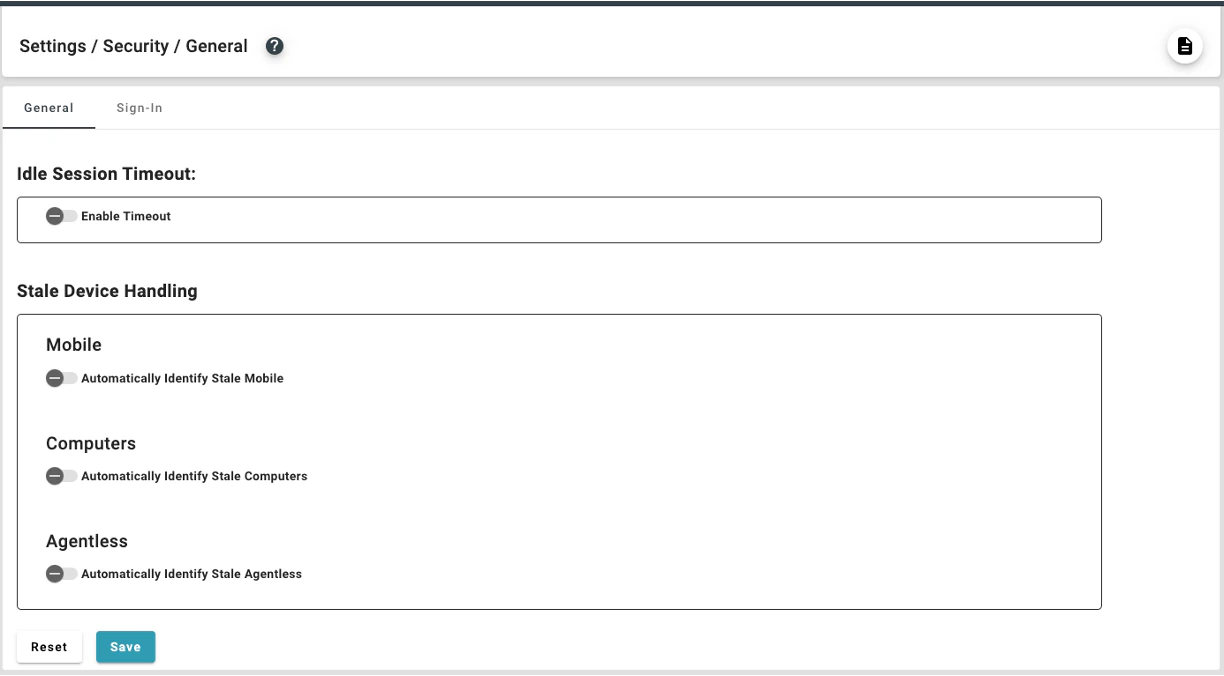
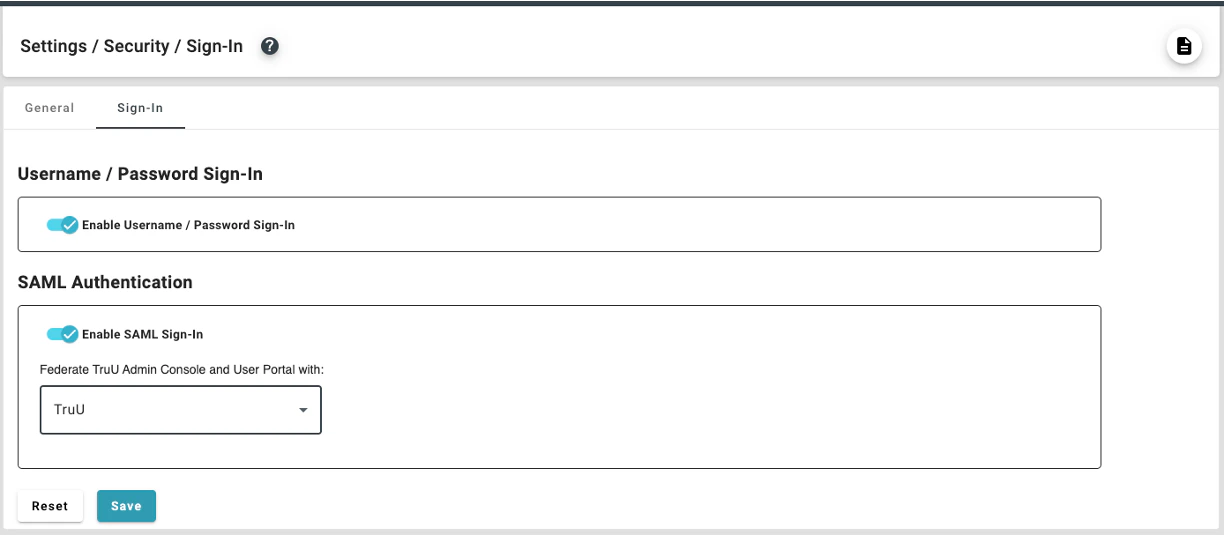
- We have improved the “Security Page” for better structure and organization abilities to the user, providing spliced tabs separating General security settings and Sign-In security settings
Enhancements
Improved Security Page
- The original Security Page (under the “Settings” tab) has been separated into two pages with tabs delineating the two sub-sections:
Bug Fixes
- We have fixed an issue where users were not able to successfully authenticate after cancelling an authentication attempt using a magic link (e.g. prevents user from getting stuck in a failed authentication loop).
- We have removed unnecessary screens presented during SSO login to create a more streamlined sign-in experience.
- We have fixed an issue where help text (e.g. showing “[email protected]” inside a text entry box) would not go away when the user types in their response.
Known Issues
| Ticket Number | Component | Summary |
|---|---|---|
| PLAT-11042 | Event Logging | No event is generated in the Admin Console when a user cancels enrollment. |
| PLAT-9359 | Admin Console | The view of devices does not get updated immediately when dormant settings are modified. If the Admin changes the “Stale Device Handling” configuration under “Settings>Security”, the status for devices (Active/Dormant) may not be accurate for up to 15 minutes, as the status is cached and updated every 15 minutes. |
| PLAT-9302 | Admin Console | In rare instances, Admin Console may fail to load. If this happens refresh the page. |
| PLAT-9891 | Policies | If a PIN profile is updated from “Not Requiring PIN Rotation” to “Require PIN Rotation”, already enrolled devices will not honor that policy. Workaround: manually set the enrolled device(s) to require a PIN change. This will force the user to change their PIN on next check-in, and updated PIN profile will be used moving forward. |
PLAT 25.174 Release Notes PLAT 24.170 Release Notes

