

Highlights
- Agentless
- Improved Security Key Support
- Streamlined User Portal
- Improved Mac Authenticator Config File
- Improved Support for Microsoft Entra ID
Enhancements
Agentless
-
Our customers have been asking for ways to support their users without an agent or a mobile app. In the past, our agentless solution consisted of FIDO security keys, and the ability to use our Identity Verification Workflows for application access. We are pleased to announce our expanded Agentless offering which includes the addition of passkeys. Passkeys provide a passwordless option based on the FIDO standards for users who will not or cannot use a TruU app or agent. This is a multi-faceted feature with changes to the Admin Console, enrollment (User Portal) and authentication.
-
Admin Console: changes for agentless consist of new policies as well as updates to how we account for and present devices.
-
Policies: We have updated our Registration Policies to include a section for “Allow Agentless Enrollment” consisting of separate policy control for hardware key and passkeys (prior policies set for “Allow 3rd Party FIDO Devices” will be automatically migrated). Passkeys are not enabled by default for existing and new registration policies and require Admins to explicitly set the policy to support passkeys.
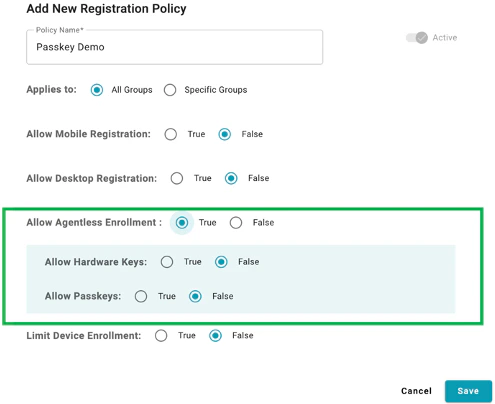
- NOTE: While we provide granular policy control for registration, application policy is for Agentless in general (e.g., if you want to allow use of hardware keys but not passkeys, you set that as a registration policy).
-
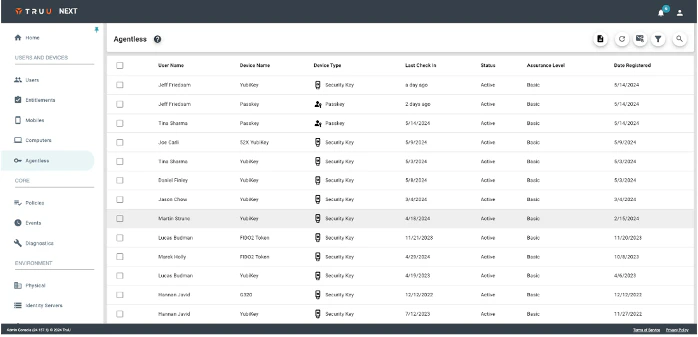
Organization of Devices: With the introduction of Passkeys, we have created a new “Agentless” section in the Admin Console to show hardware keys and Passkeys (and removed the option to force a PIN change from Agentless as that was never a supported action).
-
Policies: We have updated our Registration Policies to include a section for “Allow Agentless Enrollment” consisting of separate policy control for hardware key and passkeys (prior policies set for “Allow 3rd Party FIDO Devices” will be automatically migrated). Passkeys are not enabled by default for existing and new registration policies and require Admins to explicitly set the policy to support passkeys.
- Enrollment: We have made several changes to the User Portal to make enrollment simpler. See the “Streamlined User Portal” section below for details.
- Authentication: Finally, we’ve updated the authentication flows to support the use of passkeys by updating the device selection UI to include passkeys as an option, and more importantly, to use the passkey for authentication.
-
Admin Console: changes for agentless consist of new policies as well as updates to how we account for and present devices.
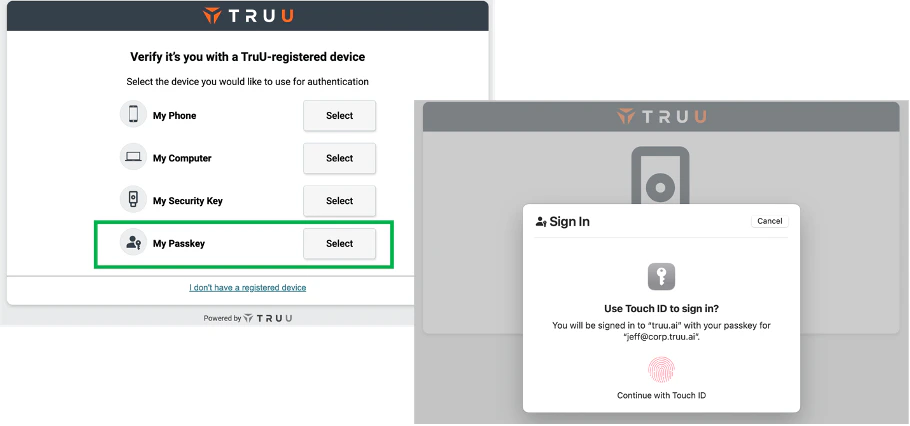
- NOTE: “My Security Key” and “My Passkey” will appear dynamically based on what has been registered in your environment. In addition, these features require a 24.157 (or higher) Identity Server.
Improved Security Key Support
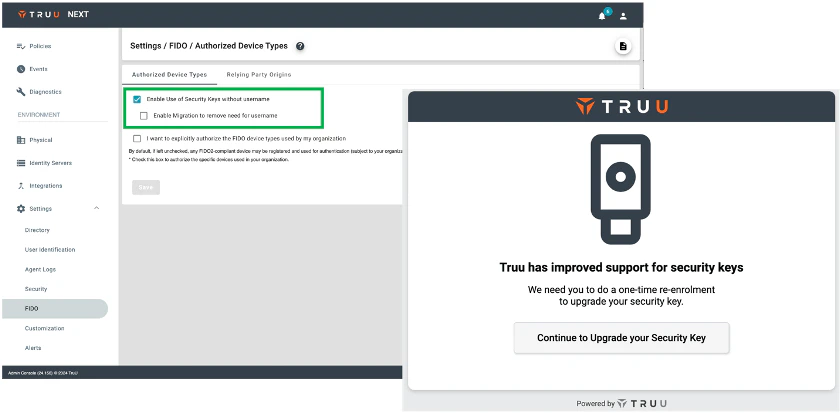
- We’ve also improved our support for security keys by supporting resident keys (aka discoverable credentials). With this approach, users can authenticate with the security key without having to enter a user identifier (e.g. email address) first. This feature can be enabled from the FIDO menu under Settings in the Admin Console. If your users have security keys that have been registered as non-resident keys, you can also enable migration to remove the need for a primary identifier. If you do this, your users will be asked for the primary identifier when they use the key for SSO. They will then be prompted to re-enroll (requiring them to use the key a 2nd time) and will then be logged into the app that they were accessing. If there are no non-resident keys in your environment, the migration option will be disabled. Similarly, if you set this option, once all keys have been migrated, the migration option will automatically be de-selected and will be disabled for your environment.
Streamlined User Portal
- We’ve also streamlined the User Portal to make it much simpler for users to enroll and manage devices. By making the following changes:
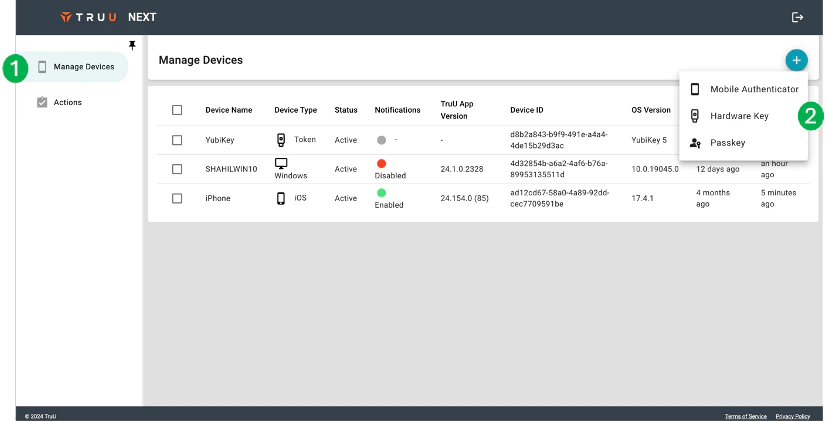
- We have removed the Home Page/Home icon (see 1 in image below). When users login to the User Portal, they will be taken directly to the Devices page.
- We now have a context-sensitive Add device option (see 2 in the image below). Instead of showing a single page with all the available device enrollments allowed for the user, the menu from the plus button shows the device types that can be enrolled. When the user clicks that device type, we now show the user a device-specific enrollment page.
- We’ve also deprecated two features from the User Portal:
- We no longer have an option for enrolling a computer through the User Portal, as computers are enrolled through the enrollment wizard in the agent and are already bound to the TruU tenant through the config file.
- We have removed the “Alert” (bell) icon that appeared next to the logout button at the top of the User Portal. We determined this icon was not necessary as alerts are already communicated to the user through a banner that appears when there are Actions pending.
Improved Mac Authenticator Config File
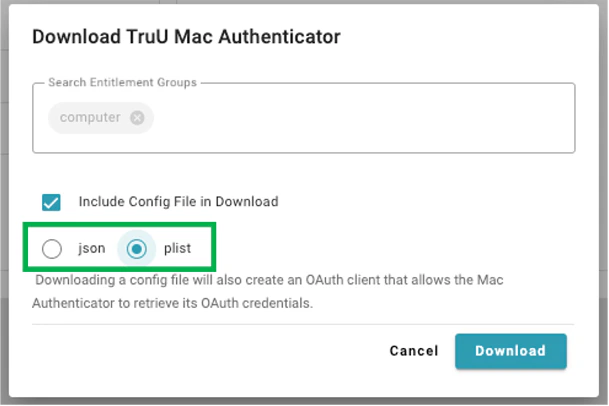
- With this release, when downloading a config file for the Mac Authenticator, you can now choose the format for the config file. The config file can now be downloaded as a json file or a plist file. If you are using an MDM (e.g., Jamf) to install TruU on your users’ Macs, you can download the plist directly from your Admin Console instead of manually creating it from the original json file.
Improved Support for Microsoft Entra ID
- We have made two changes to better align with Microsoft. First, we globally changed Azure Active Directory to Entra ID. Second, we now support automatically removing devices and user accounts when the user account is disabled in Entra ID.
Bug Fixes
- We have fixed an issue where certificates were not being generated when using Cloud Trust for users with an and (&) sign in their distinguished name.
- We have fixed an issue where a custom role with the “Invite Users” right did not enable those Admins to invite users.
Known Issues
PLAT 24.158 Release Notes PLAT 24.155 Release Notes