

Highlights
- Cleaner Dashboard (Home Page)
- Physical Security Updates
- “Register” Link Option on User Portal Sign-In Page
- “Contact Help Desk” Customization
- User Friendly QR Code Support
- Updated Entra ID Adapter
- More Intelligent “Switch Sign-in Option” Link
Enhancements
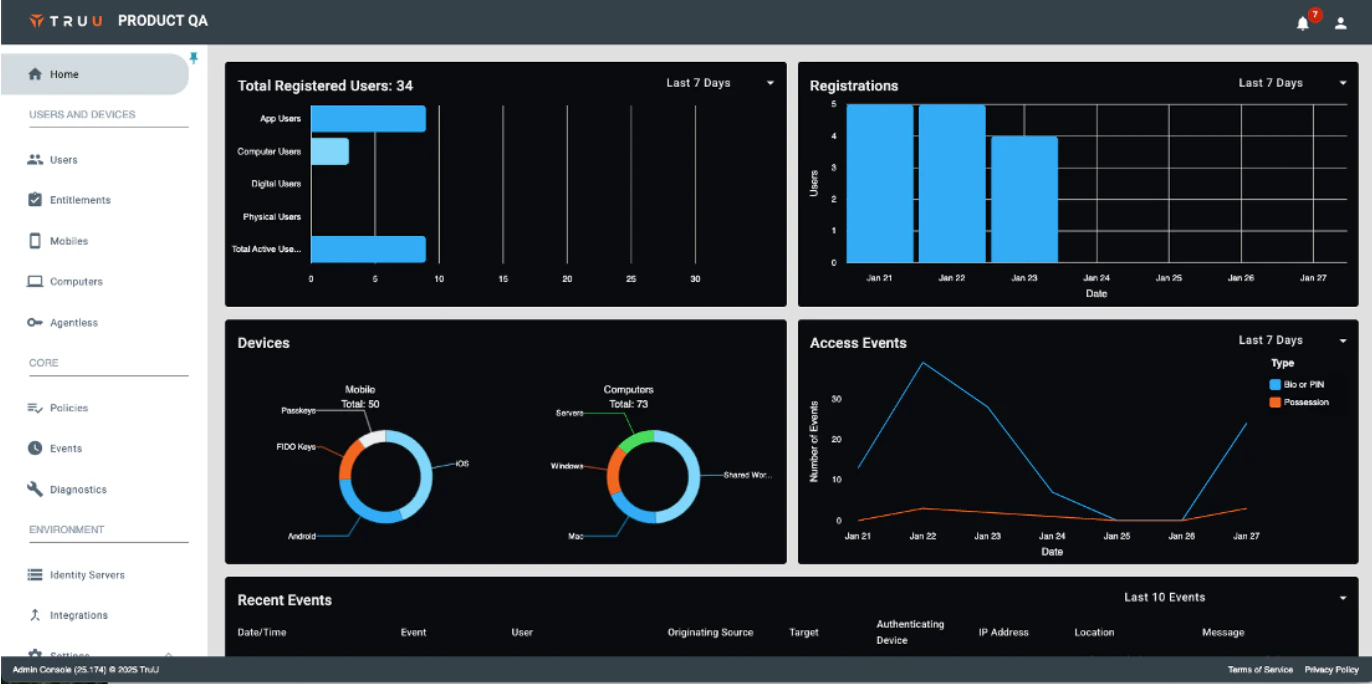
Cleaner Dashboard (Home Page)
-
We have removed the four widgets that used to appear on the right side next to the graphs as they are no longer meaningful and/or are redundant. Specifically, we have removed the following widgets:
- Identity Servers: Most customers are using TruU-managed Identity Servers. For customers with on-prem Identity Servers, they can still be managed by going to Environment>Identity Servers.
- Secure Desktop Users: This is no longer meaningful, as this tracked which users could use a smart card on their phones to login to a desktop.
- Total Doors: this is no longer needed based on the changes we have made to Physical (see next section for more details).
- Virtual Badges: this is no longer needed based on the changes we have made to Physical (see next section for more details).
Physical Security Updates
- We have greatly simplified our support for Physical Security with this release, and have removed setup requirements and unsupported adapters in the process. Here’s what has changed:
- We have completely removed the “Physical” section from the “Environment” menu. With this change, you no longer need to add buildings, virtual badges and readers to TruU for Physical.
- We now support Physical through one of the 3 remaining Physical Access Control Adapters: HID Origo, Soloinsight and SwiftConnect.
- We no longer show “Physical” policies and/or diagnostics for customers who have not setup one of the 3 supported Adapters mentioned in point 2.
- We have also simplified our Entitlement Groups, by creating a new “User” Entitlement group category to replace the previously used “Digital” and “Physical” Entitlement Groups. You will not need to take any actions to move your previously created Entitlement Groups.
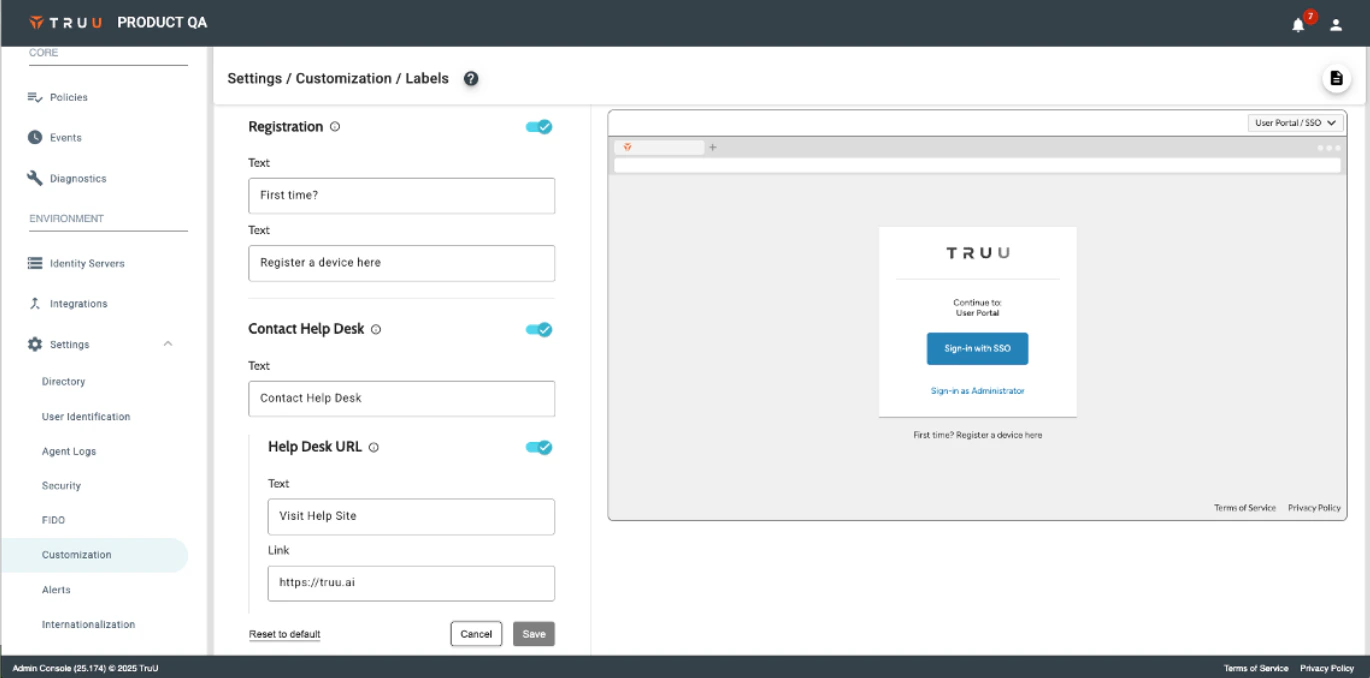
“Register” Link Option on User Portal Sign-In Page
- Customers have asked for a simpler way to enable new users to access the User Portal when SSO is not an option. We now provide an option to enable this through the Settings>Customization>Labels menu in a new “Registration” section. This section allows you to include text and a link below the SSO button so that users have an obvious way to enroll when SSO is not available to them. To use this feature, you will need to enable Workflow Authentication for your User Portal.
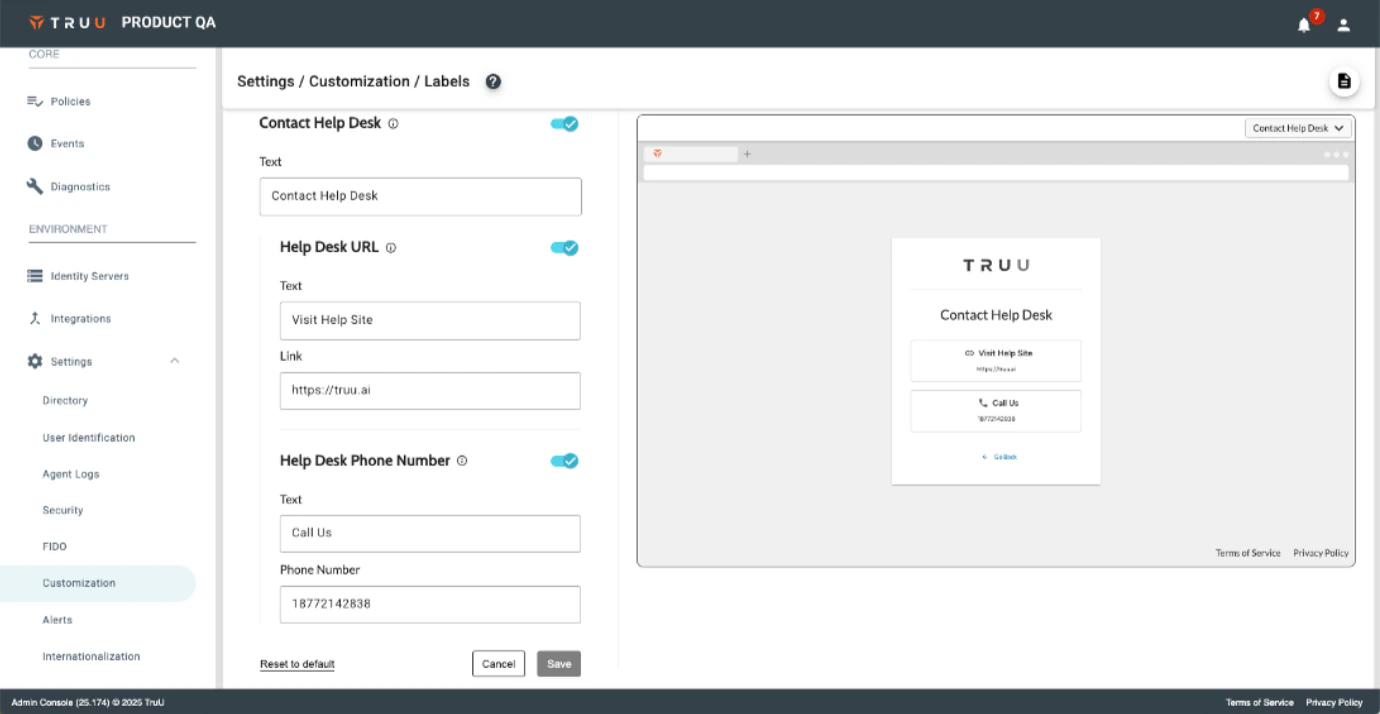
Contact Help Desk Customization
- Customers have asked for a way to provide Help Desk contact information when a user encounters an error that requires assistance from the Help Desk. We now provide an option to enable this through the Settings>Customization>Labels menu in a new “Contact Help Desk” section. When this is enabled, whenever a user encounters a TruU error in their browser that suggests to contact the Help Desk, you can now provide contact info for your Help Desk (phone and/or URL).
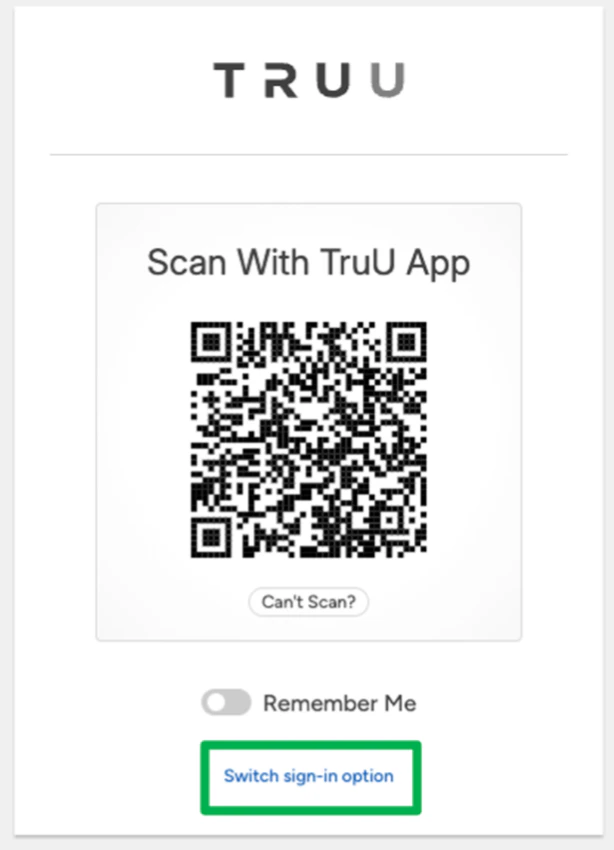
User Friendly QR Code Support
- We are updating our authentication QR codes to support automatically opening the TruU app if the user scans the code with the native camera app instead of the TruU app. With this support, older TruU mobile apps will no longer work. For this reason, we will monitor user adoption of the required app versions (25.0 (or higher) for iOS and 24.166 (or higher) for Android) before we enable this feature for each customer. We will add support for this for enrollment QR codes soon.
Updated Entra ID Adapter
- We have updated the capabilities of the Entra ID Adapter to support providing the objectSID to the Windows Authenticator when enrolling a device when the user directory is not Active Directory or Entra ID. TruU requires objectSID to successfully enroll the user with the Windows Authenticator. If the user directory does not include this information (e.g. it is not synced), the Entra ID Adapter ensures the user can enroll successfully.
More Intelligent “Switch Sign-In” Option Link
- With this release, we remove the “Switch sign-in option” link in our authentication flows when we know who the user is and know they don’t have another sign-in option. For example, if your authentication is configured to accept the login hint from a SAML provider, we will remove this link when we know that the user has no other way of signing in.
Bug Fixes
- We have added an auditing event for when an Admin updates the API token for integration with Okta.
- We have fixed an issue when the desktop agent SSO would occasionally hang with an active spinner.
- We have improved the performance for page loading when switching between the Security sub-menus (General and Sign-In).
- We have added validation for the Settings > Customization > Labels page to ensure that valid URL syntax is entered when Admins provide link for customization (e.g. privacy policy).
- We have fixed an issue where searching for an Entra group would timeout when searching in a large directory environment.
Known Issues
PLAT 25.176 Release Notes PLAT 24.171 Release Notes