

Highlights
- Passkey Sign-In from the TruU Mobile App
- Redesigned SSO Sign-In Page
- Your Sign-In Method is Remembered
- Default Authentication Method per SSO Adapter
Enhancements
Passkey Sign-In from the TruU Mobile App
- The TruU app on your phone can now hold a passkey, a strong, phishing-resistant way to sign in. The passkey is bound to your phone and to the site you are signing in to, so a fake sign-in page has nothing it can capture or replay. It is created as part of enrollment, and already-enrolled devices are offered it as well. Depending on how your organization is configured, it is registered with TruU, with Microsoft Entra, or with both.
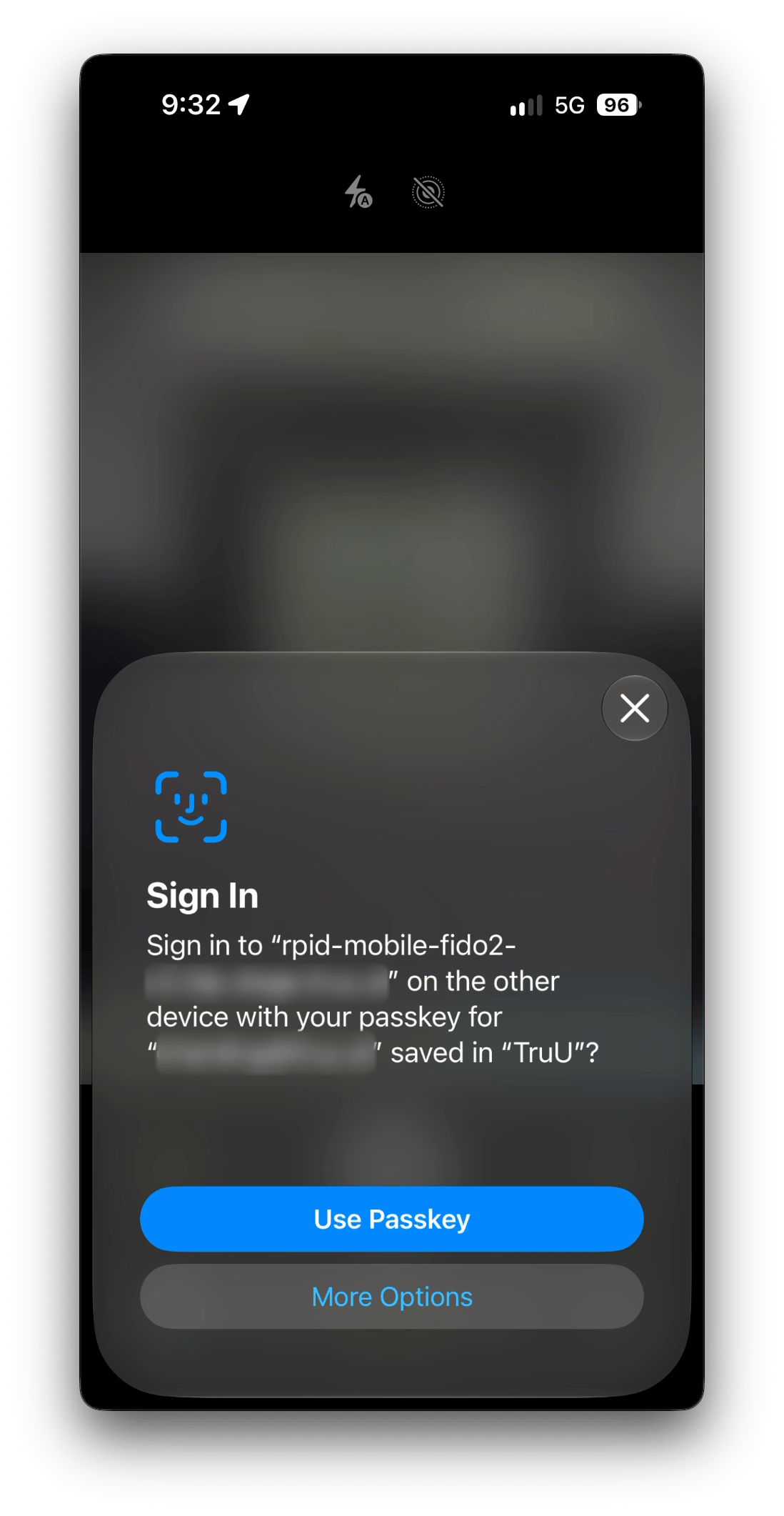
- You can use the passkey in two places. Signing in to a browser on the phone itself completes locally with the passkey, with no handoff into the TruU app. To sign in on a desktop browser, choose Mobile Passkey on the sign-in page and scan the QR code with either the scanner in the TruU app or your phone’s own camera. The passkey never leaves the phone, and signs you in on the computer.
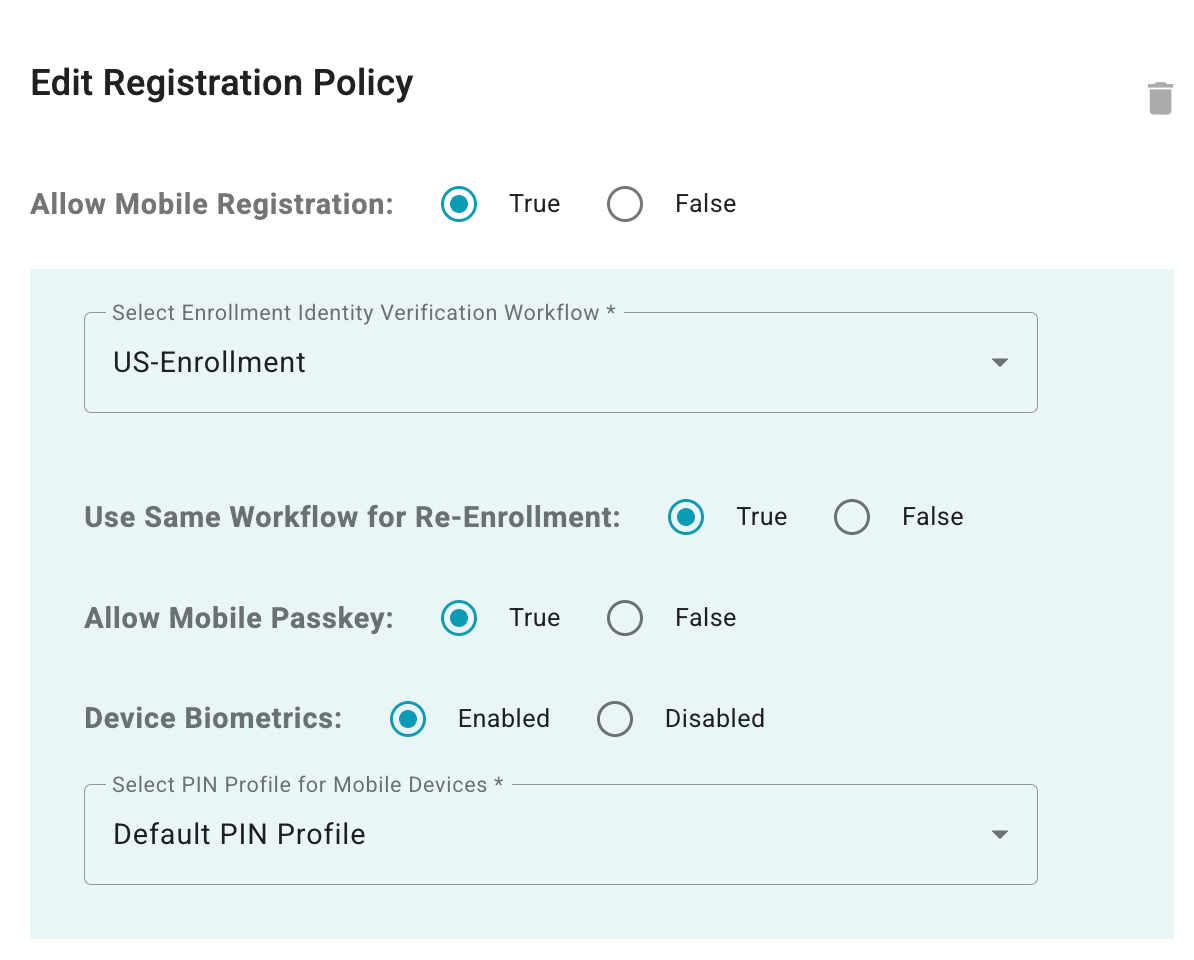
- Administrators control who gets a mobile passkey and where it can be used. Registration policy determines which mobile users are offered a passkey. Application policy determines whether users sign in with the mobile passkey or with the older code scan and action card in the TruU app. We recommend the mobile passkey in as many situations as possible, as the older methods are not phishing-resistant.
Redesigned SSO Sign-In Page
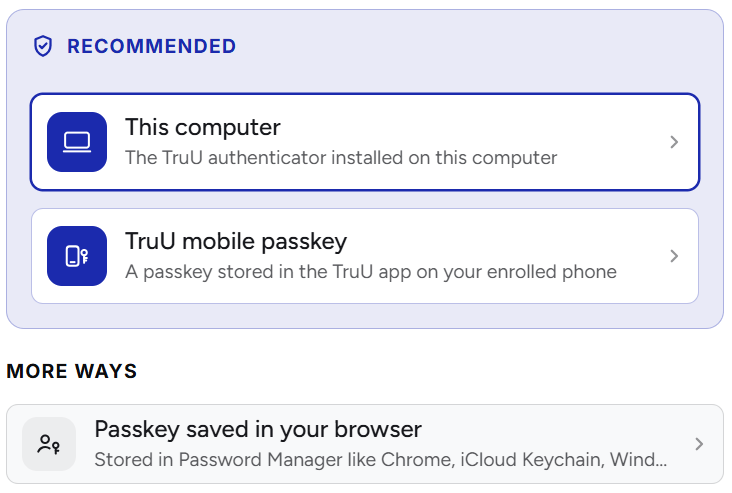
- The sign-in page now lists your available methods grouped by strength, with the phishing-resistant options under Recommended at the top and lower-security options clearly marked at the bottom. Each method has a short description so you can tell them apart at a glance. The page finishes checking which methods it can offer before showing the list, so in most cases options no longer appear and then disappear while it loads.
How Sign-In Methods Are Grouped
- The methods on the page are ordered by how well they protect you, strongest first, so the safest option available to you is always the one at the top.
- Recommended holds the phishing-resistant methods: the TruU authenticator on your computer and the passkey in the TruU app on your phone. These are tied to the device in front of you and to the site you are signing in to, so a fake sign-in page cannot capture or replay them.
- More ways holds strong methods that depend on something you have or are, such as face recognition, your work badge, a security key, or a passkey saved in your browser or password manager.
- Lower security holds methods that can be relayed or re-used by someone else, such as scanning a code with the TruU app, approving from another device, or entering a username and PIN. They are still available when you need them, but they are shown in a quieter style and are never started for you automatically.
Clearer Success and Error Screens
- After any method completes, a confirmation screen tells you that you are verified and being returned to your application. If a sign-in fails, you get a plain message and a button back to your sign-in options, along with a reference ID you can give to your help desk. Specific failure reasons are no longer shown on screen, so an attacker cannot learn whether a user, PIN, or policy was the cause.
Your Sign-In Method is Remembered
- When you successfully sign in with a Recommended or More ways method, the page remembers it and starts that same method automatically the next time, so you skip the chooser entirely. Lower-security methods, such as scanning a code with the TruU app or signing in with a username and PIN, are never remembered and are always chosen manually. If the remembered method is no longer allowed by policy, or you cancel it or it fails, you are returned to the full list of options.
Default Authentication Method per SSO Adapter
- Administrators can now set a default authentication method on each SSO adapter so that users are taken straight to one method instead of the chooser. With This computer as the default and the TruU authenticator running, desktop users are signed in with no interaction at all. If the default is not allowed by policy or is not available, the sign-in options are shown instead and nothing is started automatically. A method a user already had remembered takes precedence over the adapter default.